

Disable Ubuntu Left Corner Activity Button in 7 Easy Steps
To disable the Ubuntu left corner activity button in seven easy steps, you’ll first need to update your system.
Make sure you install necessary tools like GNOME Tweaks and the Chrome GNOME Shell integration.
Once you have those set up, add the GNOME Shell Integration browser extension.
Next, visit the GNOME Extensions website and search for the “Hide Activities Button” extension.
Install it and be sure to enable it in GNOME Tweaks.
Finally, restart GNOME Shell to apply the changes.
By following these steps closely, you’ll enjoy a cleaner desktop experience.
Plus, there are plenty of helpful customization tips ahead!
Prepare Your System for Extension Installation

To prepare your system for installing a GNOME shell extension, start by updating your Ubuntu system.
Begin by updating your Ubuntu system to ensure smooth installation of GNOME shell extensions.
Run `sudo apt update` and `sudo apt upgrade` to guarantee compatibility with the latest extensions.
Next, install the necessary support by executing `sudo apt install chrome-gnome-shell`, which enables integration with GNOME shell extensions.
To manage these extensions easily, make sure you have the GNOME Tweaks tool installed using `sudo apt install gnome-tweaks`.
For even simpler handling, consider installing the GNOME Shell Extension Manager with `sudo apt install gnome-shell-extension-manager`.
With these tools and your system up to date, you’re all set to customize your desktop environment effectively using GNOME shell extensions.
Install the GNOME Shell Integration Browser Extension
How can managing GNOME Shell extensions become simpler?
By installing the GNOME Shell Integration browser extension, you can easily manage and install GNOME extensions directly from your browser.
First, open the terminal and run `sudo apt install chrome-gnome-shell` to enable this feature.
This extension works with popular browsers like Chrome and Firefox, adding an icon that lets you browse and control extensions such as the Hide Top Bar extension or tools to disable the Left Corner /Activities button in the top-left corner.
After installation, you won’t need to rely solely on GNOME Tweaks or Ubuntu Software to customize your desktop.
This method streamlines managing the corner behavior and other GNOME desktop tweaks, enhancing your Ubuntu experience with minimal effort.
Access the GNOME Extensions Website
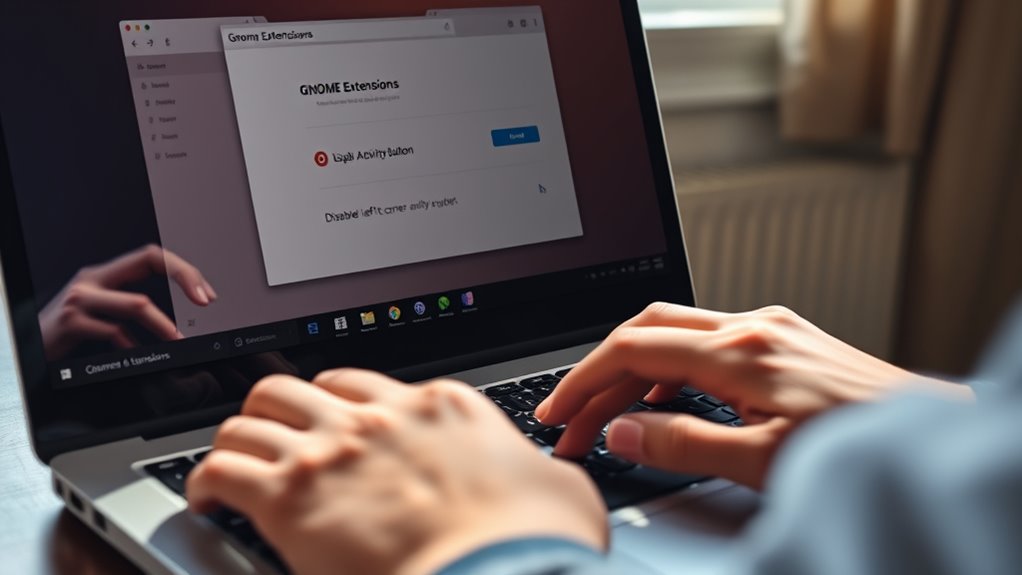
Head to extensions.gnome.org using your preferred browser to start exploring available GNOME extensions.
Make sure your browser integration is set up so you can install extensions directly from the site.
Use the search feature to find the specific extension you want to disable the left corner activity button.
Navigating to Extensions Site
Where can you find a variety of add-ons to customize your GNOME desktop?
Head over to the GNOME Extensions website at extensions.gnome.org. Open your preferred browser—Firefox or Chrome works best—and navigate to the site.
There, you can browse and search for extensions to enhance your desktop experience.
Before installing, you might need to add the “GNOME Shell Integration” browser extension and install the “chrome-gnome-shell” package on your system for a smooth setup.
Once ready, just toggle an extension to install it. Afterward, manage your extensions through GNOME Tweaks or the Extensions app.
| Step | Description |
|---|---|
| Open Browser | Use Firefox or Chrome |
| Visit Website | Go to extensions.gnome.org |
| Install Extensions | Toggle desired add-ons on the site |
Browser Integration Setup
Before you can install extensions directly from the GNOME Extensions website, you’ll need to set up browser integration.
This involves adding the “GNOME Shell Extensions” add-on to your Chrome or Firefox browser.
Make sure the “chrome-gnome-shell” package is also installed on your Ubuntu system.
To do this, open a terminal and run `sudo apt install chrome-gnome-shell` to install the necessary package.
Next, visit extensions.gnome.org using your preferred browser.
If you haven’t already, add the “GNOME Shell Extensions” browser add-on when prompted.
Enable the extension and grant the required permissions to allow seamless communication between your browser and GNOME Shell.
This setup lets you install and manage GNOME extensions directly from the website, streamlining the process to customize your Ubuntu desktop environment.
Searching Desired Extensions
Although you’ve set up browser integration, you still need to visit the GNOME Extensions website at extensions.gnome.org to search for the specific extensions that disable or hide the Activities button in Ubuntu.
Once there, use the search bar to find extensions like “Hide Activities Button” or “No Hot Corner.”
Make sure your browser has the GNOME Shell integration extension installed for smooth management.
When you find a suitable extension, check its compatibility with your GNOME Shell version before installing.
To install, simply toggle the switch on the extension’s page, and it activates immediately.
Here’s what to do next:
- Visit extensions.gnome.org to browse and search.
- Use the search bar for targeted extensions.
- Confirm compatibility and enable the toggle to install.
Search for the Hide Activities Button Extension
Head to the GNOME Extensions website or Ubuntu Software Center and search for the “Hide Activities Button” extension.
Make sure it supports your GNOME version, especially if you’re running an older release.
Once confirmed, you’re ready to install and manage it easily.
Locate Extension Online
When you want to disable the left corner Activity button on Ubuntu, start by searching for the “Hide Activities Button” extension on the GNOME Extensions website.
This is the official source for GNOME Shell plugins and the safest place to find the extension.
Once there, you should:
- Browse the extension details and user reviews to confirm it fits your needs.
- Use the “Install” button to add it directly to your GNOME Shell environment.
- If the extension isn’t available via the website or package manager, download it from the extension’s web page and install it manually.
Following these steps guarantees you locate the right extension quickly and get ready for the next step of disabling the Activity button on your Ubuntu desktop.
Verify Compatibility Version
After locating the “Hide Activities Button” extension on the GNOME Extensions website, your next step is to verify its compatibility with your GNOME Shell version.
This extension supports GNOME versions up to 3.34, mainly used in Ubuntu 19.10 and earlier.
If you’re running Ubuntu 20.04 or later, compatibility might be an issue.
Check the extension’s “Supported Versions” section on its webpage or use the GNOME Extensions app or GNOME Tweaks tool to confirm if it appears enabled.
Always ensure your GNOME Shell version matches the supported range before installation.
| GNOME Shell Version | Ubuntu Version | Extension Support |
|---|---|---|
| ≤ 3.34 | Ubuntu 19.10 & earlier | Fully compatible |
| > 3.34 | Ubuntu 20.04+ | Likely incompatible |
| Check via Extensions | Use Tweaks app | Confirm enable status |
Install the Hide Activities Button Extension
To start, open the Ubuntu Software application and search for the “Hide Activities Button” extension.
Once you find it, click the “Install” button directly from the search results to add it to your system.
Click the Install button in the search results to quickly add the extension to your system.
Before installing, make sure your GNOME version supports the extension to avoid any issues.
This extension helps you hide the top-left activities button for a cleaner desktop.
It also improves your workspace focus by removing distractions.
Plus, you can easily manage settings later through GNOME Tweaks.
After installation, you’ll be ready to configure the extension using GNOME Tweaks.
Installing this extension is a straightforward way to customize your Ubuntu desktop and disable the left corner activity button quickly and effectively.
Enable the Extension Using GNOME Tweaks
Now that you’ve installed the Hide Activities Button extension, you can activate it through GNOME Tweaks.
First, verify GNOME Tweaks is installed by opening Ubuntu Software or running `sudo apt install gnome-tweaks` in the terminal.
Once installed, launch GNOME Tweaks from your application menu. Inside, navigate to the “Extensions” tab where you’ll see a list of installed extensions.
Locate the “Hide Activities Button” extension and toggle it on to enable it. Enabling this extension will immediately hide the left corner activity button from your top bar.
There’s no need to restart your computer or GNOME Shell; the change takes effect instantly, allowing you to customize your desktop experience quickly and efficiently.
Restart GNOME Shell to Apply Changes
Although enabling the Hide Activities Button extension applies changes immediately, restarting GNOME Shell can help guarantee all modifications take full effect.
Restarting refreshes your desktop environment without closing open apps, ensuring the left corner Activity button is fully disabled.
You have several ways to restart GNOME Shell:
- Press `Alt + F2`, type `r`, and press Enter for a quick refresh.
- Use `Alt + Shift + F2`, then type `r` and hit Enter on some systems.
- Log out and back in to apply changes safely.
Alternatively, you can run `gnome-shell –replace &` in the terminal, but this may briefly disrupt your session.
Choose the method that fits your setup best to complete the process smoothly.
Frequently Asked Questions
How to Hide Activity Bar in Ubuntu?
You can hide the activity bar by installing the “Hide Activities Button” extension via GNOME Extensions or Tweaks.
After installing, just enable the extension to remove the activity button and clean up your desktop interface.
It’s a simple way to streamline your workspace and make it look more organized!
How Do I Turn off Hot Corners in Ubuntu?
To turn off hot corners in Ubuntu, you just need to disable them via Settings under Multitasking.
Alternatively, you can run `gsettings set org.gnome.shell enable-hot-corners false`.
It’s like drawing a curtain to block that sudden screen pop-up.
What Is Ctrl Alt F4 in Ubuntu?
Ctrl+Alt+F4 switches you to the fourth virtual terminal (TTY4) in Ubuntu.
This allows you to access a command-line login outside your graphical desktop.
Use it for troubleshooting or running commands without the GUI.
What Is Alt F2 in Gnome?
Alt + F2 in GNOME opens a command launcher where you can quickly type commands, like restarting the GNOME Shell with ‘r’.
It’s handy for troubleshooting and running quick commands without opening a terminal window.
Just think of it as a shortcut to execute tasks efficiently!
Conclusion
Now that you’ve disabled the left corner activity button, your Ubuntu desktop feels as sleek as a well-tuned sports car.
Just like a master locksmith removes an unnecessary key, you’ve streamlined your workflow by removing distractions.
With these simple steps, you’ve taken control of your GNOME experience, making it uniquely yours.
So go ahead—embrace this newfound simplicity.
Enjoy a cleaner, more focused workspace every time you log in.
By customizing your desktop environment, you’ve enhanced your productivity and created a more enjoyable user experience.
Remember, a minimalistic approach often leads to greater efficiency.
Keep exploring other customization options to further tailor your Ubuntu experience to fit your needs!