

How to Disable New Private Windows in Brave Browser
You can disable new private windows in the Brave browser quite easily.
First, navigate to brave://flags and search for “Private Window with Tor.”
Once you find it, set it to “Disabled” and then relaunch the browser.
For stricter control, consider using the Group Policy Editor or modifying your system registry to block private browsing entirely.
Additionally, adjusting extension permissions can help manage access to private mode.
If you’re looking to enforce these settings across multiple devices or fine-tune your privacy controls, there are more detailed methods available.
Feel free to explore those options for a better browsing experience!
Understanding Private Windows and Tor Browsing in Brave

How does Brave keep your browsing private?
Brave Browser offers private windows that don’t save your history, cookies, or site data, much like incognito mode.
You can open private windows easily to protect your browsing experience.
Brave also lets you enhance privacy by enabling Tor browsing within a private window, routing traffic through the Tor network for anonymity and access to hidden services.
If you want to disable private browsing or remove the private browsing option, you might find challenges since Brave aims to keep these features accessible for privacy.
To set Brave to private browsing or disable private windows, you’ll need to explore settings carefully, as standard options don’t always allow it.
If you still find private windows active, understanding content filtering and browsing modes can help you manage or remove the private browsing feature effectively.
Accessing Brave Flags to Modify Private Browsing Features
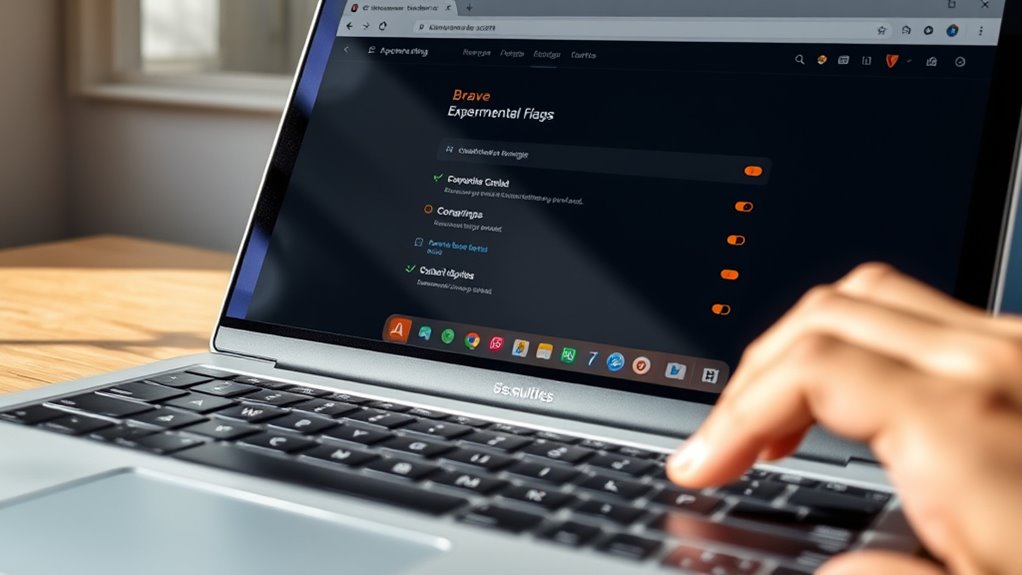
You can start by typing “brave://flags” into the address bar to access Brave’s experimental settings.
Use the search box to find options related to “Tor” or “Private Window.”
From there, you’ll be able to disable the “Private Window with Tor” feature to restrict private browsing.
Locating Brave Flags
Although Brave doesn’t offer a direct setting to disable private windows, you can access advanced options by typing “brave://flags” into the address bar and pressing Enter.
This page contains experimental features that let you tweak Brave’s behavior, including private browsing functions.
Once you’re on the Flags page, use the search box to find keywords like “Private” to locate relevant settings quickly.
You’ll see dropdown menus next to each flag—click them to select “Disabled” or “Default” to change how private windows work.
After adjusting these flags, don’t forget to hit the “Relaunch” button at the bottom to apply your changes.
This method helps you control private browsing features that aren’t available through standard settings.
Searching Tor Settings
After locating Brave’s flags related to private browsing, the next step is to search specifically for Tor settings.
This guarantees you find the exact option controlling Tor-enabled private windows.
To do this, follow these steps:
- Open Brave and type `brave://flags` in the address bar, then press Enter.
- Use the search box at the top of the flags page to enter keywords like “Tor” or “Private Window with Tor.”
- Identify the “Private Window with Tor” flag from the results.
- Change its dropdown menu from “Default” to “Disabled.”
- Click the “Relaunch” button at the bottom to restart Brave and apply your changes.
This process lets you precisely target settings that influence Tor private windows before you disable them entirely.
Disabling Tor Windows
When you want to prevent new private windows with Tor from opening in Brave, accessing the browser’s experimental flags is essential.
First, go to brave://flags and use the search bar to find “Tor.” You’ll see the “Private Window with Tor” option.
Change it from “Default” to “Disabled” to stop new Tor private windows from launching. Finally, click “Relaunch” at the bottom to apply your changes.
| Step Number | Action | Description |
|---|---|---|
| 1 | Open brave://flags | Access experimental browser features |
| 2 | Search “Tor” | Locate the Tor private window flag |
| 3 | Change setting | Switch from Default to Disabled |
| 4 | Click “Relaunch” | Restart Brave to save changes |
| 5 | Verify | New Tor private windows are disabled |
Disabling Private Window With Tor via Brave Flags
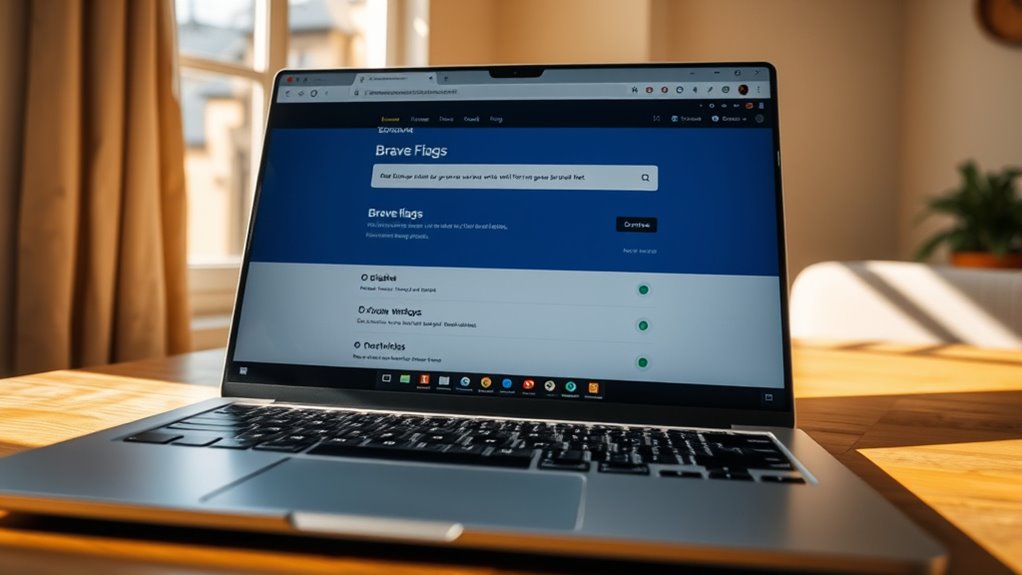
You’ll start by heading to brave://flags to access the browser’s experimental settings.
Then, search for the “Private Window with Tor” option and switch it from “Default” to “Disabled.”
Finally, relaunch Brave to apply the change and remove the Tor private window option.
Access Brave Flags
Although Brave doesn’t offer a direct setting to disable private windows with Tor, you can access the browser’s experimental features through brave://flags to make this change.
Here’s how to proceed:
- Open Brave and go to the URL bar.
- Type brave://flags and press Enter.
Use the search bar at the top to find the “Private Window with Tor” flag.
Click the dropdown next to it and select “Disabled.”
Hit the “Relaunch” button at the bottom to restart Brave and apply the changes.
After relaunching, the option to open private windows with Tor will no longer be available.
This effectively disables that feature through Brave’s flags interface.
Disable Tor Feature
If you want to prevent private windows with Tor from opening in Brave, you can disable this feature through the browser’s flags settings.
Start by typing `brave://flags` in the address bar. Use the search bar to find “Tor” and locate the “Private Window with Tor” flag.
Change its setting from “Default” to “Disabled.” Finally, click “Relaunch” at the bottom to apply the change and restart Brave.
This disables the Tor option in private browsing, giving you better control over your browsing environment.
| Step | Action | Result |
|---|---|---|
| 1 | Go to `brave://flags` | Access experimental settings |
| 2 | Search “Tor” | Locate relevant flag |
| 3 | Set “Private Window with Tor” to Disabled | Turn off Tor private windows |
| 4 | Click “Relaunch” | Restart Brave with changes |
| 5 | Verify Tor option is gone | Enhanced browsing control |
Using Group Policy Editor to Restrict Private Browsing on Windows
When you want to restrict private browsing in Brave Browser on a Windows machine, using the Group Policy Editor offers a straightforward solution.
Here’s how you can do it efficiently:
- Open the Local Group Policy Editor by typing “gpedit.msc” in the Run dialog or search bar.
- Navigate to Computer Configuration > Administrative Templates > Brave Browser.
- Find the Enable Incognito Mode policy and set it to Disabled to block private windows.
- Locate the Enable Tor policy and set it to Disabled to restrict Tor browsing features.
- Open Command Prompt and run `gpupdate /force` to apply your changes immediately.
This method guarantees private browsing is restricted without altering system files directly.
Registry Tweaks to Permanently Disable Private Windows in Brave
To permanently disable private windows in Brave Browser, you can modify specific registry keys that control these features.
Navigate to `HKLMSOFTWAREPoliciesBraveSoftwareBrave` in the Windows Registry Editor and set the `IncognitoModeAvailability` value to `1`. This prevents users from opening any private browsing windows.
If you want to restrict private features further, add a `TorDisabled` DWORD value and set it to `1` to disable Tor integration.
After making these changes, restart your system to guarantee the settings take effect fully.
This registry tweak offers a persistent, system-wide solution to block access to Brave’s private browsing mode reliably, even if users try to bypass other restrictions.
Just be cautious when editing the registry to avoid unintended system issues.
Adjusting Brave Extension Settings to Control Private Mode Access
Although Brave lets you browse privately, you can control which extensions work in that mode by adjusting their settings.
To manage this, head to brave://extensions and locate the extension you want to control. Then, click on “Details” to access its options.
Navigate to brave://extensions, find your extension, and click “Details” to adjust its settings.
Here’s what you should do:
- Find the extension responsible for privacy or security controls.
- Click on “Details” to open its settings.
- Look for the “Allow in private” toggle.
You can disable this toggle to block the extension in private windows.
Finally, save your changes to restrict the extension during private browsing.
This way, you prevent certain extensions from functioning when you open a private window, giving you more control over your private browsing experience in Brave.
Monitoring and Managing Private Browsing Behavior on Devices
Since private browsing modes don’t save history locally, you’ll need to rely on network tools like routers, DNS logs, or specialized monitoring software to track activity during private sessions.
You can configure your devices or networks to log DNS requests and analyze router traffic, giving you insight into browsing behavior even when private windows are used.
In enterprise settings, applying Group Policy or configuration profiles helps prevent users from opening private modes across multiple devices.
While browser extensions or system restrictions can block or warn against private browsing, users often find workarounds unless enforcement is strict.
Regularly reviewing device and network logs is essential to detect attempts to bypass restrictions and ensure compliance with your private browsing policies effectively.
Troubleshooting and Additional Tips for Disabling Private Windows
When disabling private windows in Brave, you might encounter issues like persistent access or incomplete feature blocking.
To troubleshoot and ensure effective restriction, try these tips:
To effectively restrict private browsing, apply these troubleshooting tips for better control and enforcement.
- Use brave://flags to disable “Private Window with Tor” and relaunch Brave.
- Edit Group Policy via gpedit.msc to disable Tor and private browsing, then run gpupdate /force.
Remember that extensions can’t block private windows directly, but they can limit certain browsing behaviors.
In enterprise environments, enforce policies that prevent users from enabling private modes.
Combining technical restrictions with user education can help prevent savvy users from bypassing controls.
If problems persist, double-check settings and updates.
Some features might reset after browser updates or policy changes.
Frequently Asked Questions
How Do You Turn off Private Windows in Brave?
You can’t turn off private windows directly in Brave’s settings, but you can disable them by editing your system’s registry on Windows.
Alternatively, you can use terminal commands on Mac to block private browsing mode effectively.
Is Brave Browser Owned by China?
Don’t judge a book by its cover—Brave Browser isn’t owned by China.
It’s developed by an American company based in San Francisco, led by Brendan Eich.
There are no ties to Chinese ownership or control whatsoever.
How Do I Disable the Private Browsing Option?
You’ll need to disable private browsing by editing system settings.
On Windows, change the registry key `IncognitoModeAvailability` to 1.
On Mac, run a terminal command to set the same value.
This effectively blocks private windows.
What Is the Brave Browser Controversy?
You might think Brave’s controversy is a hurricane, but it boils down to privacy.
You’ll find critics worried about its ad system, data sharing, and transparency.
They’re questioning if it truly guards your anonymity like it claims.
Conclusion
Disabling new private windows in Brave is like closing a secret door you don’t want open.
By tweaking Brave Flags, using Group Policy Editor, or editing the registry, you gain control over private browsing.
Adjusting extensions and monitoring device activity add extra layers of security.
With these tools in your hands, you can confidently lock down private windows.
This way, you keep your browsing habits exactly how you want—secure, controlled, and far from prying eyes.
In conclusion, disabling new private windows in Brave enhances your browsing security.
By using Brave Flags, Group Policy Editor, or registry edits, you can ensure that private browsing remains under your control.
These methods, combined with careful management of extensions and device activity, create an environment that prioritizes privacy.
Ultimately, you can browse safely and maintain your online habits without fear of exposure.