

How to Disable Find My Mac in 7 Easy Steps
To disable Find My Mac, you’ll need to navigate through a few simple steps.
First, start by opening the Apple menu and selecting System Settings.
Next, click your user name at the top of the sidebar, then choose iCloud from the options.
Now, locate Find My Mac in the list and click the Turn Off button next to it.
You’ll need to enter your Apple ID password to verify your identity.
Once confirmed, Find My Mac will be disabled, effectively removing tracking features from your device.
If you’re interested, keep going to learn more about managing your Mac’s security settings.
It’s always good to stay informed about how to protect your device!
Open the Apple Menu and Access System Settings

To begin, click the Apple menu icon in the upper-left corner of your screen and select “System Settings” from the dropdown.
This action opens the main preferences window where you can manage various settings on your Mac.
Before proceeding, make sure your Mac is connected to a stable Wi-Fi network to allow proper synchronization with iCloud.
In System Settings, you’ll eventually find options related to your Apple ID and iCloud services, including Find My Mac.
Accessing this section is essential for managing and disabling Find My Mac if needed.
Click on Your User Name at the Top of the Sidebar
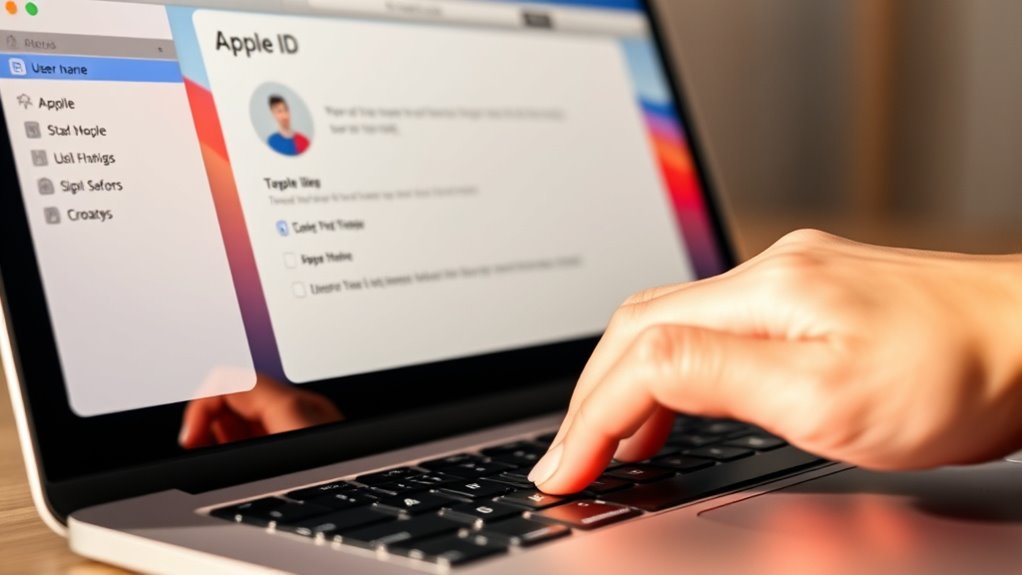
Once you open System Settings, look to the sidebar on the left side of the window.
At the very top, you’ll see your user name—click on it to access your Apple ID details.
This step is key to managing your Find My Mac settings.
Locate User Name
Where can you find your user name in macOS?
It’s right at the top of the sidebar in System Settings. Once you open System Settings, your user name appears prominently, making it easy to locate.
Clicking your user name gives you access to essential account details and settings.
Remember, you need to be logged in with your Apple ID to see your user name and related services.
Here’s what to do:
- Open System Settings on your Mac.
- Look at the top of the sidebar for your user name.
- Click your user name to view account details and iCloud options.
This step is vital because accessing your user name is the gateway to managing settings, including disabling Find My Mac.
Sidebar Navigation
After finding your user name at the top of the sidebar in System Settings, click it to open your Apple ID account details.
This sidebar navigation step is pivotal because it gives you direct access to all Apple ID-related settings.
Once you click your name, you’ll see various options linked to your account, including iCloud settings.
The sidebar in System Settings is designed for easy navigation, letting you quickly switch between sections without losing your place.
Focusing on the Apple ID section allows you to manage important features like Find My Mac.
By using this sidebar navigation, you streamline your path to disabling Find My Mac, making the process quicker and more straightforward.
Select Icloud From the Available Options
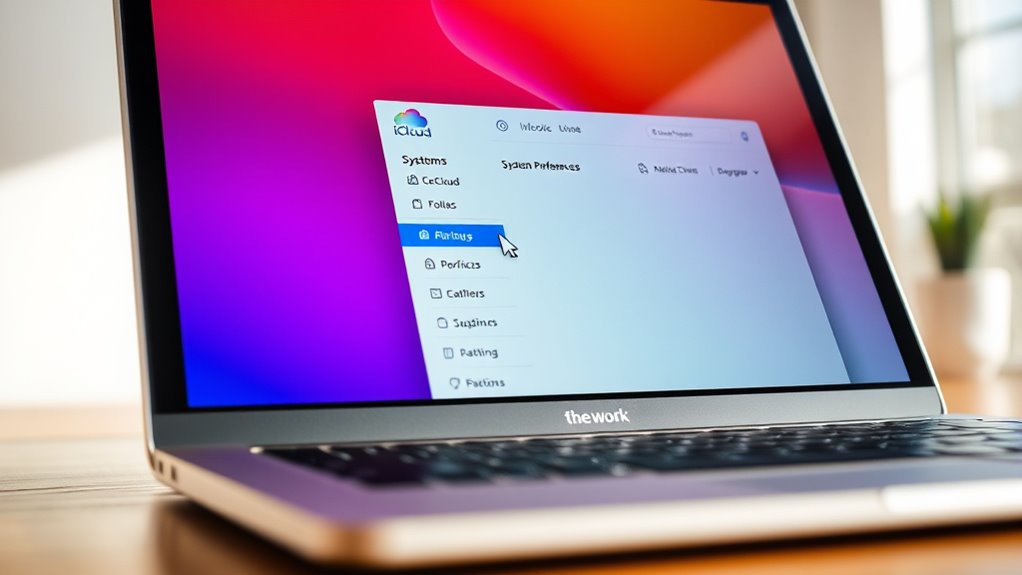
Although accessing iCloud settings might seem straightforward, you’ll need to open the Apple menu and select System Settings first.
Once there, click on your name at the top of the sidebar to open your Apple ID options. This step is essential to manage your iCloud services, including Find My Mac.
Next, select iCloud from the list of available options. This will bring up a detailed view of the iCloud features connected to your Apple ID.
To see everything you can control, click on “See All.”
Here’s what to do:
- Open the Apple menu and go to System Settings.
- Click your name to access Apple ID settings.
- Choose iCloud from the list to manage Find My Mac and other services.
Locate Find My Mac in the Icloud Settings
Open System Settings and click your name to access Apple ID details.
Then select iCloud.
Scroll down or click “See All” to reveal the full list of iCloud services.
From there, locate Find My Mac to manage its settings.
Navigate to Icloud Settings
When you want to disable Find My Mac, start by clicking the Apple menu in the top-left corner of your screen and selecting “System Settings.”
Then, click your Apple ID name at the top of the sidebar to access your account details.
Next, follow these steps to navigate to iCloud settings:
- In the Apple ID window, select “iCloud” from the options on the right.
- Scroll down or click “See All” to reveal all iCloud services.
- Locate Find My in the list of iCloud Settings to manage its options.
Find Find My Mac
Where can you find the option to turn off Find My Mac?
You’ll locate Find My Mac within the iCloud settings on your Mac.
Start by clicking your Apple ID profile at the top of the sidebar in System Preferences or System Settings.
Then select iCloud from the list.
Scroll down or click “See All” to reveal all iCloud services, including Find My Mac.
You’ll see it as a checkbox that’s either checked or unchecked.
To disable Find My Mac, simply click to uncheck the box.
You’ll be prompted to enter your Apple ID password to confirm the change.
Once you provide your password, Find My Mac will be disabled, removing tracking and security features linked to your Apple ID.
Access Full Settings List
Although accessing Find My Mac might seem straightforward, you’ll need to navigate through several menus in System Settings to reach the full list of iCloud services.
Start by clicking the Apple menu () and selecting System Settings.
Then, follow these steps to locate Find My Mac:
- Click your name at the top of the sidebar to open your Apple ID details.
- Select iCloud from the menu options to view your iCloud settings.
- Scroll down or click “See All” to reveal the complete list of iCloud services linked to your Apple ID.
Among these services, you’ll find Find My Mac.
From here, you can easily enable or disable this feature as needed.
Click the Turn Off Button Next to Find My Mac
Before you can fully disable Find My Mac, you need to locate the option within your iCloud settings in System Preferences.
Then, click the “Turn Off” button next to it. This button is your gateway to disabling the feature that helps track your Mac if it’s lost or stolen.
When you click “Turn Off,” you’re initiating the process to remove your device from Find My Mac’s tracking and iCloud protection.
Disabling Find My Mac means your Mac will no longer be associated with the tracking features that keep it secure.
This step is essential if you want to completely turn off Find My Mac on your device.
Once you click the button, the system will prompt you for further confirmation to finalize the disable process.
Enter Your Apple ID Password for Verification
After clicking the “Turn Off” button next to Find My Mac, you’ll be asked to enter your Apple ID password to verify your identity.
This step is vital to guarantee that only you, the authorized user, can disable this security feature linked to your device.
By requiring your Apple ID password, Apple prevents anyone else from remotely turning off Find My Mac without your permission.
Here’s what you need to keep in mind:
- Enter your Apple ID password accurately to verify your ownership.
- If you’ve forgotten your password, reset it via the Apple ID account page or recovery options.
- Providing your password is a necessary security measure to protect your Mac and your data.
This verification step secures your device and maintains your privacy.
Confirm the Action to Disable Find My Mac
Once you enter your Apple ID password, you’ll need to confirm that you want to disable Find My Mac.
This confirmation is essential because it verifies your identity and guarantees that only you can authorize disabling this feature.
By confirming the action, you prevent unauthorized users from turning off Find My Mac on your device.
After you successfully enter your Apple ID password and confirm, Find My Mac will be disabled and your Mac will be removed from your iCloud account’s tracking.
This step adds an important layer of security, making sure that disabling Find My Mac requires the correct credentials.
Frequently Asked Questions
How Do I Disable Find My on My Mac?
You disable Find My on your Mac by opening System Settings, clicking your Apple ID,
selecting iCloud, then Find My Mac, and turning it off.
Enter your Apple ID password when prompted, and it’ll be disabled.
How Do I Completely Turn off Find My?
You completely turn off Find My by opening System Settings, clicking your name,
selecting iCloud, then deselecting Find My Mac.
Enter your Apple ID password when prompted to confirm,
disabling tracking and Activation Lock on your device.
Why Won’t Apple Let Me Turn off Find My?
Isn’t it ironic that Apple won’t let you turn off Find My to keep your Mac secure?
You can’t disable it without your Apple ID, an internet connection, or bypassing security policies.
All these measures are designed to protect your device from theft.
How Do I Disable Mac Tracking?
You disable Mac tracking by opening System Settings, clicking your name, selecting iCloud, then Find My Mac.
Click “Turn Off,” enter your Apple ID password, and confirm.
This stops your Mac from being tracked via Apple services.
Conclusion
Disabling Find My Mac is quick and straightforward, helping you regain control over your device’s settings.
Interestingly, over 80% of Mac users rely on Find My Mac to locate lost devices, showing how vital it is for security.
However, when you need to turn it off, following these simple steps guarantees you do it safely and correctly.
Now, you’re all set to manage your Mac’s features with confidence.
In conclusion, disabling Find My Mac can be essential when you want to make changes to your device or sell it.
By following the easy steps outlined, you can ensure you turn off this feature without any hassle.
Remember, while it’s a great tool for security, knowing how to disable it when necessary empowers you as a user.
So, take charge of your Mac’s settings today!