
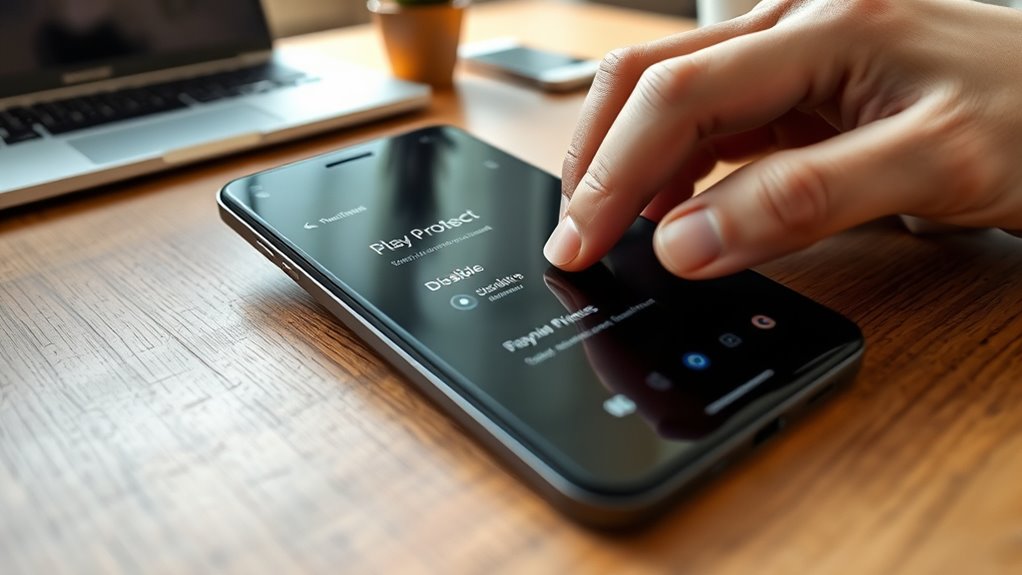
How to Disable Play Protect in 5 Easy Steps
To disable Play Protect in five easy steps, start by opening the Google Play Store.
Next, tap your profile icon located in the top right corner.
From here, select “Play Protect,” and then tap the gear icon to access settings.
Now, look for the toggle labeled “Scan apps with Play Protect” and switch it off.
Make sure to confirm that it’s disabled by checking the status message.
Whenever you want to re-enable it, just reverse these steps.
Keep exploring to learn more about managing Play Protect features efficiently!
Open Google Play Store and Access Play Protect
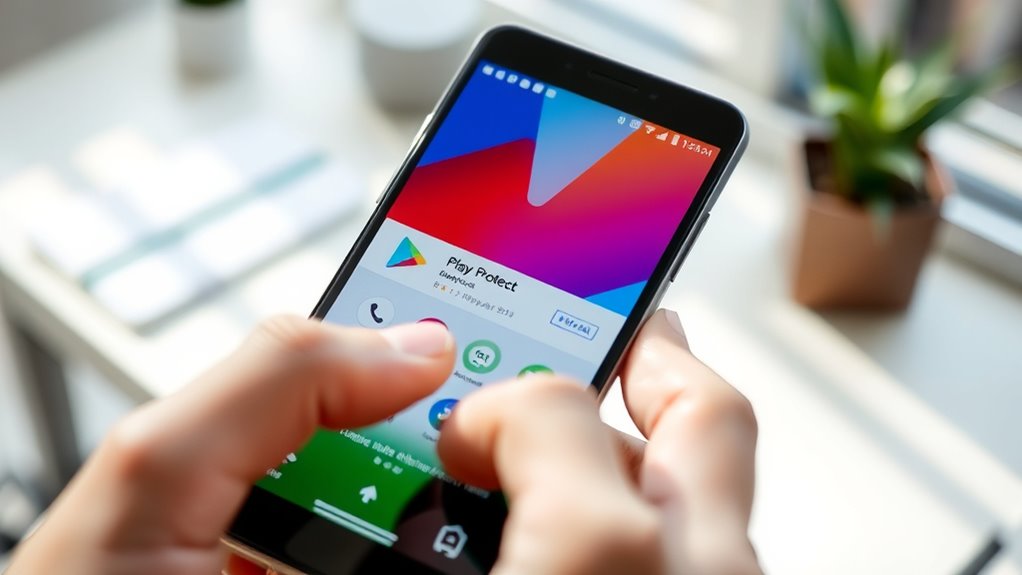
Before you can disable Play Protect, you need to open the Google Play Store app on your Android device.
Start by tapping the app icon from your home screen or app drawer.
Once inside, look at the top right corner and tap your profile icon.
This will open a dropdown menu where you’ll find “Play Protect.”
Select it to access your device’s security features related to Google Play Protect.
In this section, you can manage how Play Protect scans apps on your Android device.
To proceed, tap the gear icon or “Settings” within Play Protect.
Here, you’ll find options that allow you to disable the scanning features that check your apps for security risks.
This step is essential before you can fully disable Play Protect.
Navigate to Play Protect Settings
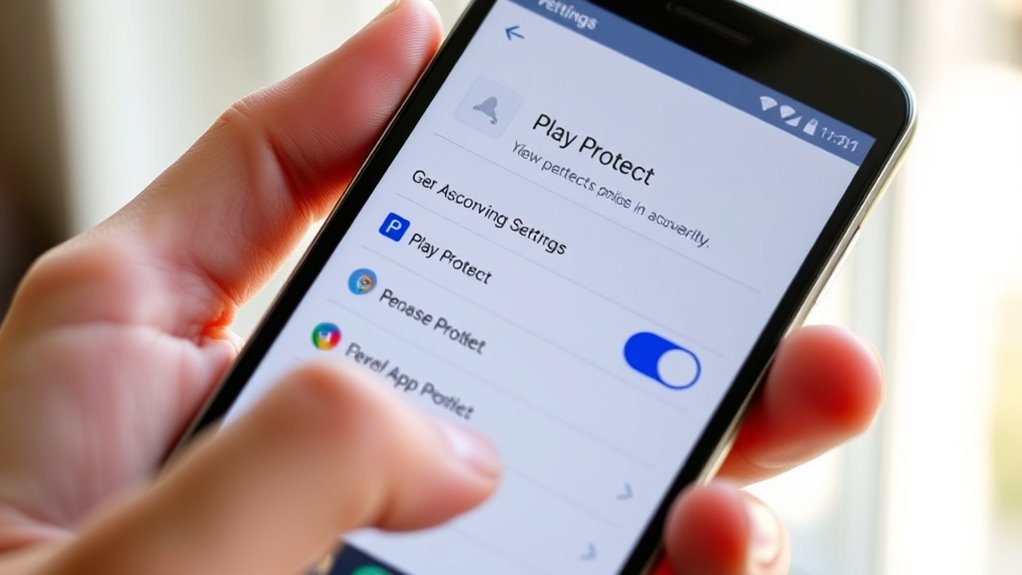
After you tap “Play Protect” from the dropdown menu, you’ll see the Play Protect screen displaying your device’s security status.
To proceed with disabling Play Protect, focus on locating the Play Protect settings.
Open the Google Play Store app and tap your profile icon in the top right corner.
From the menu, select “Play Protect” to access this security feature.
On the Play Protect screen, tap the gear icon to open the settings options.
These settings let you control how your device scans apps with Play Protect.
Browsing here is essential before toggling off the “Scan apps with Play Protect” option.
Toggle off Scan Apps With Play Protect
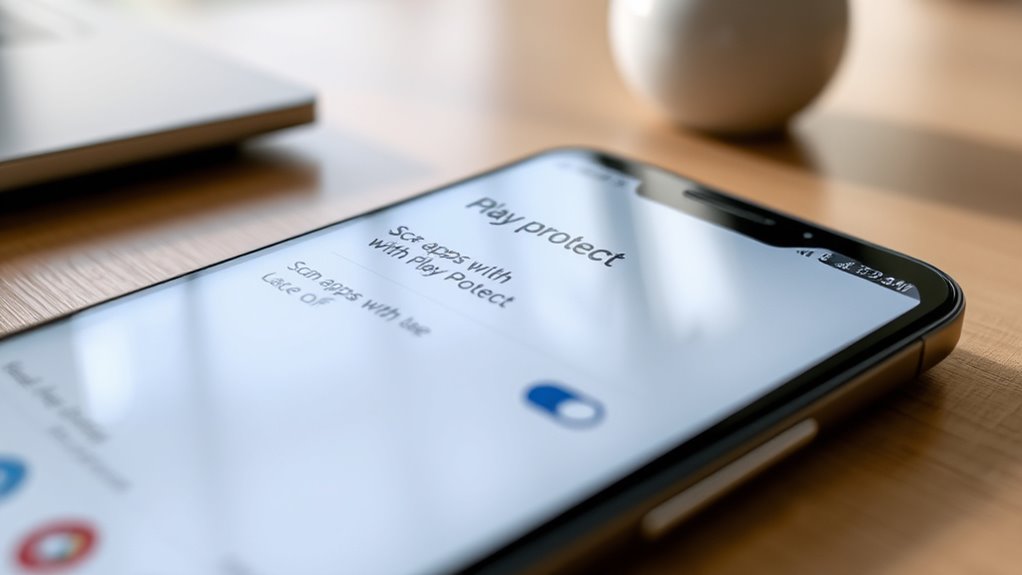
Once you’ve opened the Play Protect settings, you can easily toggle off the “Scan apps with Play Protect” option to stop your device from scanning apps automatically.
This disables Google Play’s security feature that scans apps for harmful behavior.
To do this, tap the gear icon in Play Protect, then toggle off the “Scan apps with Play Protect” switch.
Just a heads up—disabling this may reduce security on your device, so proceed with caution.
| Step | Action | Result |
|---|---|---|
| 1 | Open Google Play Store | Access your account |
| 2 | Tap profile icon | Open dropdown menu |
| 3 | Select Play Protect | Open security settings |
| 4 | Tap gear icon | Enter Play Protect settings |
| 5 | Toggle off “Scan apps” | Disable automatic app scanning |
Confirm Disabling Play Protect
Toggling off “Scan apps with Play Protect” stops automatic app scanning, but you’ll want to confirm the change took effect.
To verify that you’ve successfully disabled Play Protect, open the Google Play Store on your Android device.
Tap your profile icon, and navigate to Play Protect settings.
Check that the toggle for scanning apps is off and that the status message indicates protection is paused or turned off.
This confirmation ensures Play Protect isn’t actively monitoring apps, which impacts your device’s security.
If you’re using ADB, you can also verify the status by checking that the package_verifier_user_consent value is set to -1.
Double-checking these settings guarantees you’ve properly disabled Play Protect as intended.
Re-enable Play Protect After Installation
When you finish installing a third-party app or APK, be sure to re-enable Play Protect. This is important to maintain your device’s security.
To do this, open the Google Play Store on your Android device. Tap your profile icon, and select Play Protect.
Next, tap the settings gear icon within the Play Protect menu. Here, toggle the “Scan apps with Play Protect” switch back on to restore protection.
If prompted, confirm by selecting “Turn on.”
Re-enabling Play Protect is essential after you disable it to install apps safely. It ensures ongoing security scans and threat detection.
Finally, restart your Android device if necessary to make sure Play Protect resumes its regular security functions. This simple step helps keep your device protected without compromising app installation flexibility.
Frequently Asked Questions
How to Force Turn off Play Protect?
You can force turn off Play Protect by opening Google Play Store.
Tap your profile icon, then select Play Protect.
Next, access settings via the gear icon, and toggle off “Scan apps with Play Protect.”
Don’t forget to confirm to disable it.
How to Unblock Apps Blocked by Play Protect?
You can unblock apps Play Protect flagged by temporarily turning off its scan feature in the Play Store settings.
After installing the app, re-enable Play Protect for security.
Clearing Google Play Store data also helps reset verification.
How to Enable 18+ on Play Store?
You can enable 18+ content by opening the Play Store, tapping your profile, and selecting Settings.
Then, go to Family and turn on Parental Controls.
Next, set a PIN and under Content Restrictions, choose the 18+ age limit for apps and games.
How Do I Turn off Android Protection?
You can turn off Android Protection by opening Play Protect in the Play Store.
Tap the gear icon, and toggle off “Scan apps with Play Protect.”
Confirm to disable it, but be cautious about potential risks.
Conclusion
Disabling Play Protect is as simple as flipping a switch, giving you control over your app installations.
Just remember, turning it off leaves your device more vulnerable, like an open door inviting unwanted guests.
So, after installing your trusted apps, don’t forget to turn Play Protect back on to keep your device safe and secure.
Staying cautious helps you enjoy your apps without risking your phone’s security.
In conclusion, while disabling Play Protect can provide you with the freedom to install applications of your choice, it’s essential to remain vigilant.
Always ensure you trust the sources of your apps and remember to re-enable Play Protect afterward.
This way, you can maintain a balance between enjoying your favorite apps and keeping your device secure from potential threats.
Stay safe and happy app-ing!