

How to Disable Write Protection on an SD Card Step by Step
To disable write protection on your SD card, start by checking the physical lock switch on the side of the card and slide it to the unlocked position. This is often the simplest solution and can resolve the issue quickly.
If that doesn’t work, you can use Windows DiskPart for further troubleshooting.
Open Command Prompt as an administrator, then type `diskpart`.
Next, select your SD card by entering `select disk X`, replacing ‘X’ with the correct disk number, and then run the command `attributes disk clear readonly`.
If this method fails, consider adjusting the Windows registry or formatting the card using the appropriate file system.
Additionally, verify the permissions on the SD card and scan it for malware, as these can also cause write protection issues.
For deeper fixes and hardware tips, keep exploring your options.
Understanding Write Protection on SD Cards
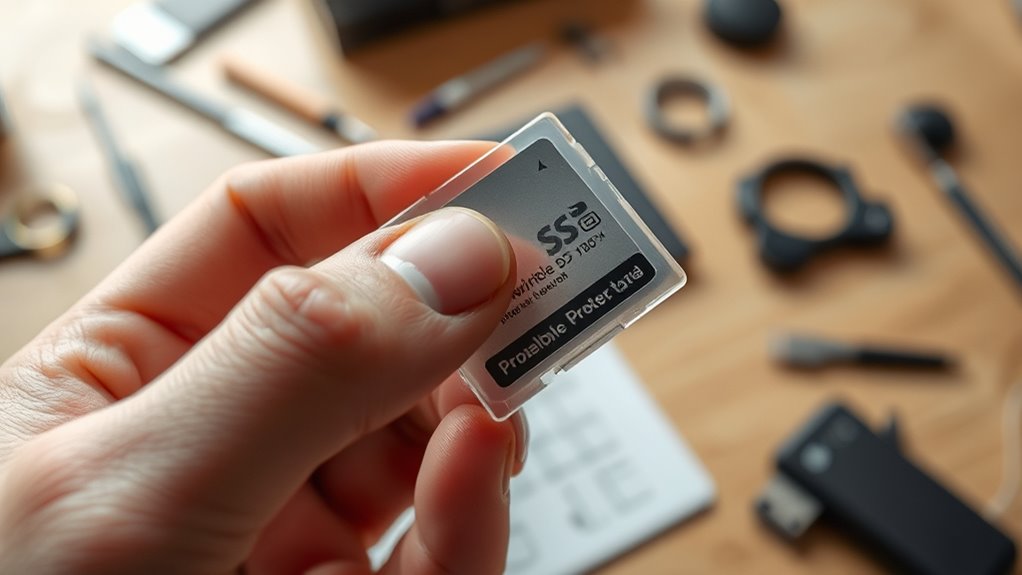
Have you ever wondered why you can’t delete or modify files on your SD card?
This happens because of write protection, which makes the card read-only to prevent accidental changes, corruption, or malware damage.
While full-size SD cards often have a physical switch to toggle write protection on or off, microSD cards usually don’t.
Besides the physical switch, software settings in your operating system can enable write protection.
Sometimes, this is controlled through the registry editor or system policies.
Additionally, internal damage or corruption can cause your SD card to become permanently write-protected, blocking any modifications.
Understanding these causes helps you identify whether the issue is due to a simple setting or a more serious hardware problem requiring troubleshooting or replacement.
Identifying the Physical Lock Switch on Your SD Card
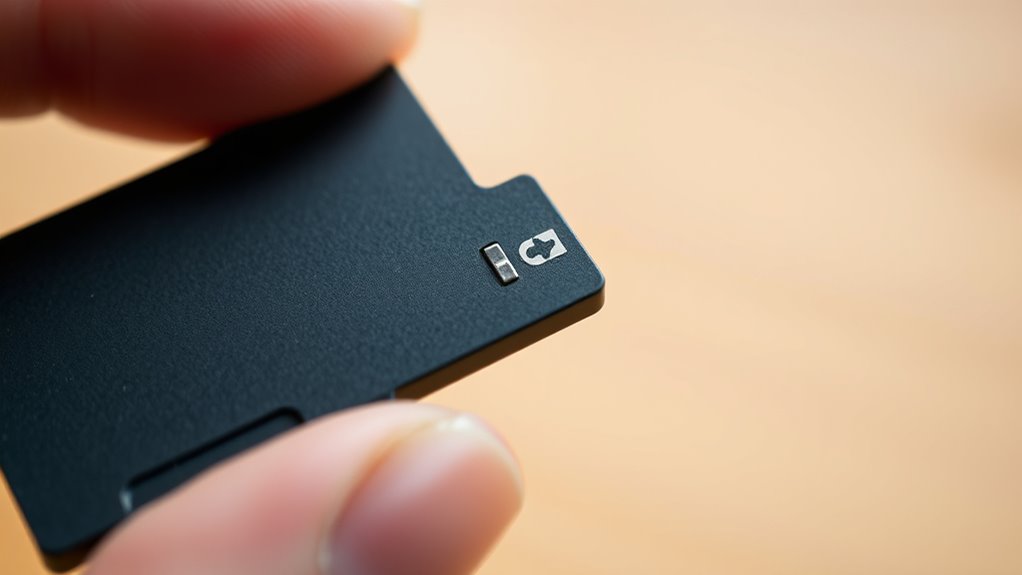
You’ll find a small sliding switch on the side of most full-size SD cards that controls write protection.
When the switch is in the down or “Lock” position, the card won’t allow any changes.
Make sure the switch is slid up to “Unlocked” before trying any software fixes.
Locate the Switch Position
Although not all SD cards feature a physical lock, many full-size cards include a small switch on the side that controls write protection.
To disable write protection, first locate this switch. It usually slides up or down along the card’s edge.
When the switch is in the downward position, the card is locked, preventing any writing or changes.
Slide the switch upward to release it, allowing data to be written or deleted.
Make sure the switch is firmly in the unlocked position before using the card.
If the switch or slot is dirty, gently clean it, as debris can interfere with proper contact and cause the lock to stay engaged.
Note that micro SD cards typically lack this switch, but their adapters might have one.
Switch Lock Mechanism
Finding the physical lock switch on your SD card is key to controlling its write protection.
Most full-size SD cards feature a small physical lock switch on the side. Sliding this switch up releases the card, disabling write protection and letting you modify data.
On the other hand, sliding it down locks the card, activating write protection and preventing changes.
If your SD card lacks this switch, write protection may stem from software or damage.
Always check that the switch mechanism is firmly set to unlock before writing data.
| Position | Effect on Write Protection |
|---|---|
| Up | Unlocks, allows data edits |
| Down | Locks, prevents edits |
| No switch | Possible software lock |
Using DiskPart to Remove Write Protection on Windows
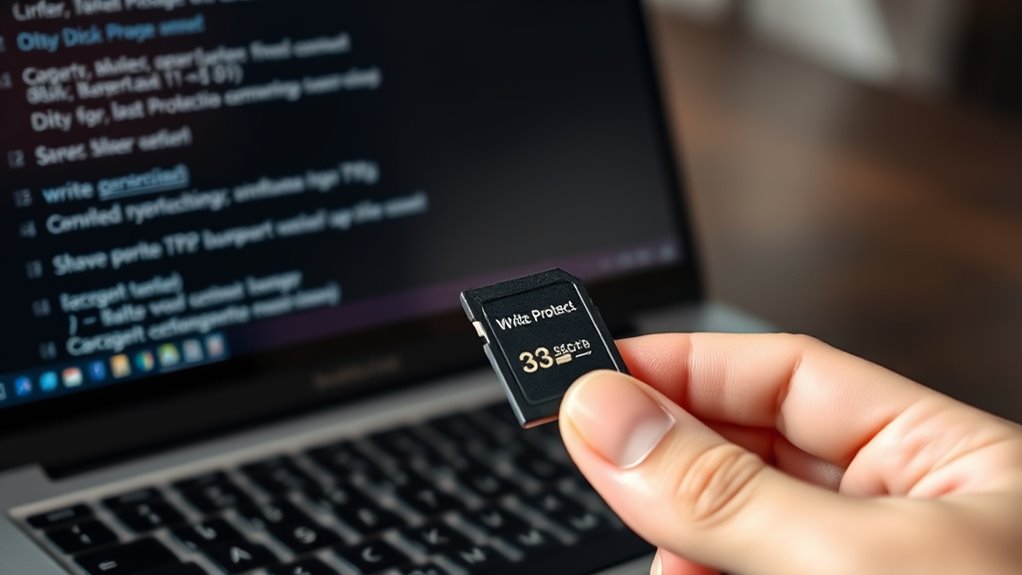
You’ll start by opening Command Prompt as an administrator and launching the DiskPart utility.
Next, you’ll identify your SD card and clear its read-only attributes to remove the write protection.
This method gives you direct control over your disk’s settings to make the necessary changes.
Launching DiskPart Utility
When you need to remove write protection from your SD card on Windows, launching the DiskPart utility is an essential first step.
Start by opening the Start menu, typing “cmd,” right-clicking Command Prompt, and selecting “Run as administrator.” This opens an elevated Command Prompt window.
Next, type `diskpart` and press Enter to launch the DiskPart utility.
You’ll then use the `list disk` command to view all connected storage devices, so you can identify your SD card by its size.
After that, use `select disk X` (replace X with your SD card’s number) to focus the commands on your card.
| Step | Command | Purpose |
|---|---|---|
| Open Command Prompt | Run as administrator | Enable elevated privileges |
| Launch DiskPart | `diskpart` | Start DiskPart utility |
| List disks | `list disk` | View connected drives |
| Select your SD card | `select disk X` | Choose your write-protected disk |
Clearing Read-Only Attributes
How can you remove the write protection from your SD card using DiskPart?
First, open Command Prompt as an administrator and launch DiskPart by typing `diskpart` and pressing Enter.
Next, list all connected disks with `list disk` to identify your SD card by its size.
Select your SD card by typing `select disk X`, replacing X with the correct disk number.
To clear the read-only attribute that causes write protection, enter the command `attributes disk clear readonly`.
This action removes the write protection flag assigned to the disk.
Once completed, type `exit` to close DiskPart.
After these steps, your SD card should no longer be write-protected, allowing you to write data freely.
This method effectively clears the readonly attribute on the disk to disable write protection.
Editing Windows Registry to Disable Write Protection
Although it might seem complex, editing the Windows Registry is a straightforward way to disable write protection on your SD card.
Start by pressing Windows key + R, type “regedit,” and hit Enter to open the Registry Editor.
Navigate to HKEY_LOCAL_MACHINESYSTEMCurrentControlSetControlStorageDevicePolicies.
If you don’t see a “WriteProtect” value, right-click the right pane, select New > DWORD (32-bit) Value, and name it “WriteProtect.”
Double-click “WriteProtect” and set its value data to 0 to disable write protection.
This change in the registry tells Windows to allow writing to your SD card.
Finally, restart your computer to apply the registry changes.
After rebooting, check if your SD card is writable and no longer write-protected.
Formatting the SD Card With the Correct File System
Since choosing the right file system is essential for your SD card’s compatibility and performance, you’ll want to format it carefully.
To format, right-click your SD card’s icon in File Explorer and select “Format.” For cards up to 32GB, pick FAT32; for larger ones, choose exFAT.
Right-click your SD card in File Explorer, select Format, and choose FAT32 for up to 32GB or exFAT for larger cards.
This ensures your card works smoothly across devices. You can select “Quick Format” for speed, but if write protection persists, try a full format.
Before formatting, double-check the file system type to avoid compatibility issues. Once formatting’s done, safely eject your SD card and test it to confirm it’s no longer write-protected and functions properly.
Proper formatting with the correct file system is a key step in resolving write protection problems on your SD card.
Adjusting File and Folder Permissions on the SD Card
If your SD card remains write-protected after formatting, you should check its file and folder permissions.
Open File Explorer, right-click the SD card drive, and select “Properties.”
Navigate to the Security tab to view current permissions for users and groups.
Click “Edit” to modify these settings.
Here, select “Everyone” or a specific user account, then grant write access by checking the “Allow” boxes for “Full Control” and “Modify.”
This adjustment guarantees you have the necessary permissions to write data.
After making these changes, click “Apply” and “OK” to save.
Scanning for Malware That May Cause Write Protection
Adjusting permissions helps address many write protection issues, but sometimes the problem stems from malicious software.
Malware or a virus can alter system files or registry settings to enable write protection on your SD card without you realizing it.
To fix this, run a full antivirus scan using reputable software to detect and remove any harmful programs.
Some malware specifically targets removable storage devices, corrupting their file systems and triggering write protection mode.
Make sure your antivirus definitions are up to date before scanning.
Regularly checking your computer and SD cards for malware prevents unauthorized modifications that cause these issues.
Utilizing Third-Party Tools to Clear Write Protection
When standard methods fail to remove write protection from your SD card, you can turn to third-party tools like SD Formatter and EaseUS Partition Master.
These tools specialize in formatting and repairing your SD card to clear stubborn write protection. They scan for file system errors and fix corrupted sectors that often cause software-based write protection.
They repair your SD card by fixing file system errors and corrupted sectors that trigger write protection.
Many third-party tools offer a “Full” or “Overwritten” format option. This goes beyond standard formatting to effectively disable write protection.
Some utilities can even reset internal lock mechanisms.
Before you proceed, back up all important data because these processes will erase your files.
Utilizing third-party tools provides a powerful solution when typical methods don’t work. This ensures your SD card is fully accessible again without write protection blocking you.
Troubleshooting Hardware Issues With Adapters and Card Readers
Since many SD adapters include a physical lock switch that prevents writing, you should first check whether the switch is in the locked position.
If your card appears write-protected, flip the adapter’s switch to unlock it.
Next, test the microSD card with different adapters or card readers.
Faulty hardware can falsely signal write protection.
Also, try connecting the card reader to another USB port or device to isolate the issue.
This troubleshooting helps determine if your problem stems from the card, adapter, or reader.
| Issue | Action |
|---|---|
| Lock switch on adapter | Flip to unlocked position |
| Card still write-protected | Try different adapter or reader |
| Adapter or reader faulty | Replace hardware |
| USB port issues | Use alternative port or device |
Frequently Asked Questions
How to Take off Write Protection on SD Card?
You can take off write protection by sliding the SD card’s lock switch to unbolt.
Additionally, you can use Diskpart to clear readonly attributes.
If you’re feeling a bit tech-savvy, editing the registry to disable write protection is another option.
And if all else fails, formatting the card with a reliable tool like SD Formatter can do the trick.
How Do I Turn off Write Protection?
You can turn off write protection by sliding the SD card’s lock switch to unseal.
If that doesn’t work, clear the readonly attribute via Command Prompt or tweak the registry.
Sometimes, formatting the card solves it entirely.
How Do You Unprotect Your SD Card?
You unprotect your SD card by sliding the physical lock switch to open.
If that doesn’t work, you can use DiskPart to clear read-only attributes.
Also, check your device permissions to make sure everything is set correctly.
If all else fails, formatting the card might be necessary.
If protection persists after that, it may be time to consider replacing the card.
How to Remove Write Protection From SD Card Free Software?
You can use free tools like Diskpart to clear the read-only attribute.
SD Formatter is also a great option for fully formatting your SD card.
If you want to reset the file system, MiniTool Partition Wizard is an effective choice too.
All of these methods are great ways to remove write protection from your SD card.
Conclusion
Now that you know how to disable write protection on your SD card, you can regain full control over your files.
For example, imagine Sarah, who couldn’t save new photos until she used DiskPart to clear write protection.
By following these steps, you’ll avoid similar frustrations and protect your data.
Just remember, whether it’s a physical lock or a software glitch, there’s always a way to fix it and get your SD card working smoothly again.
In conclusion, understanding how to disable write protection can save you a lot of headaches.
With the right steps, you can manage your files effectively and ensure that your important data remains accessible.
So don’t let write protection hold you back—take action and enjoy the freedom of using your SD card without restrictions!